How to Convert JPG to Word?
JPG is a popular image format. Sometimes there is a need to convert JPG files into Word documents. Reasons can be many: some want to organize images in a single document, while others need the text inside images to be editable. There can be other reasons too.
So, the question is, how can a JPG be converted to an editable Word document?
Well, different methods can be used to convert JPG files into Word documents. Here we are going to take you through the easiest and free ones.
4 Free and Easy Methods to Convert JPG to Word
The easiest way to convert a JPG into a Word document is to use online tools like JPG to Word. Other methods include using Google Drive or MS Word and converting with an AI tool (e.g., Claude).
1: How to Convert JPG to Word Online with OCR
The easiest and most efficient way to convert a JPG to Word online is to use an OCR-powered tool. Follow the steps below to convert a JPG to Word using the JPG to Word utility, which uses OCR technology.
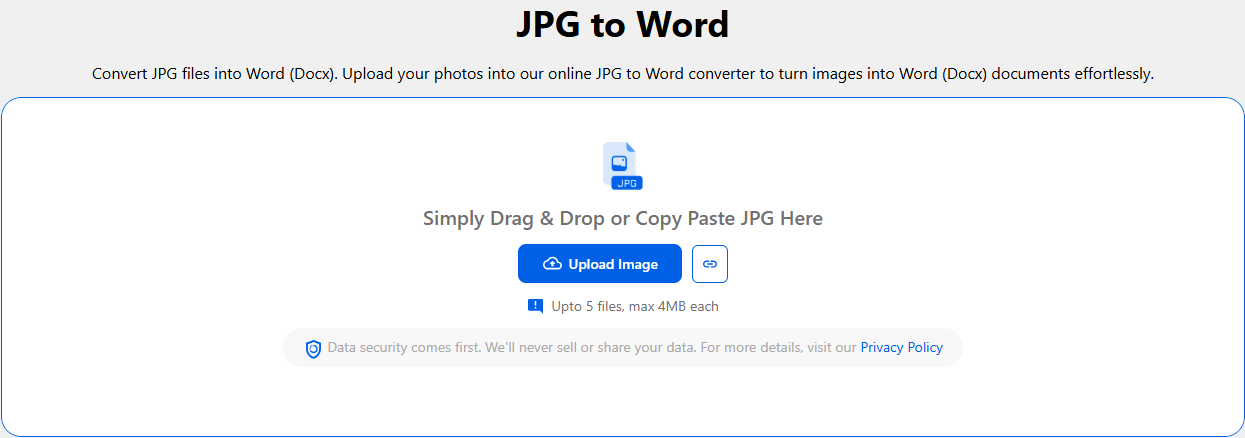
Step 1. Add JPG/JPEG
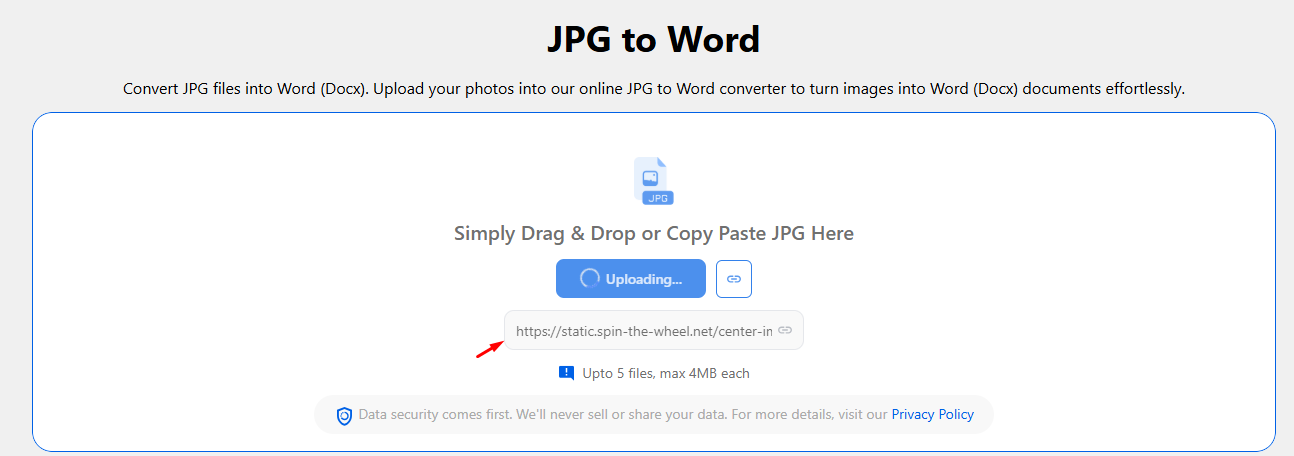
If the JPG file is publicly available on the internet, you can directly paste the URL into the tool.
Step 2. Convert to Document
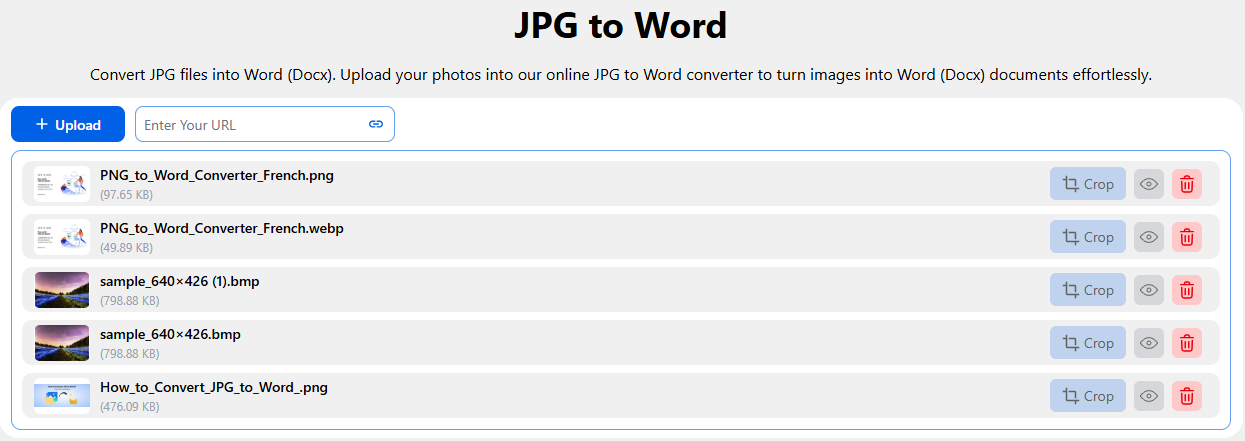
Once your JPG files are uploaded, you can crop and remove unnecessary parts. To crop, click the crop icon next to the uploaded file.
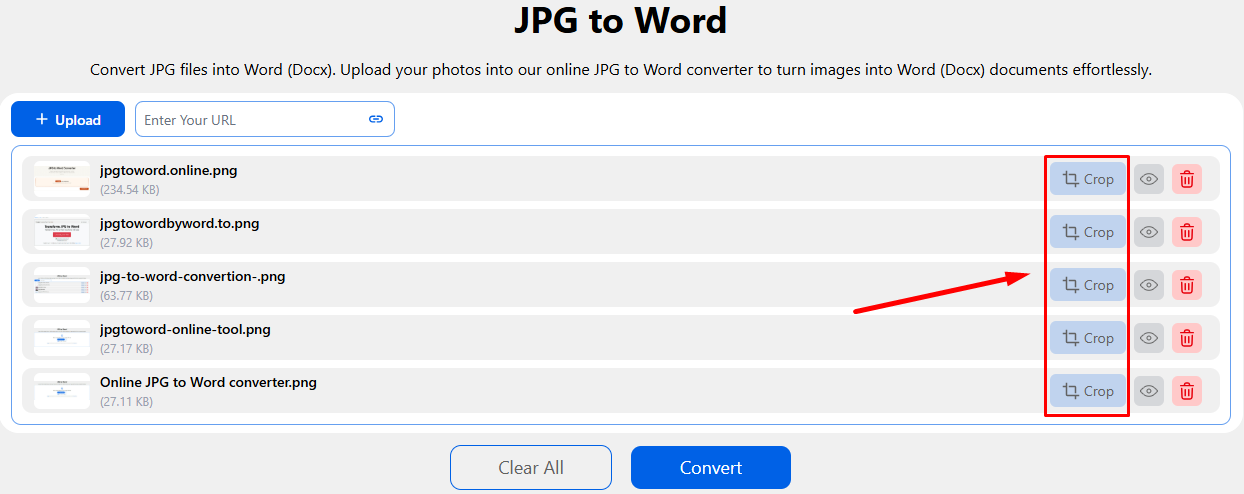
This will open a pop-up that lets you make edits before the conversion. After making any changes, you must click the Save Image button.
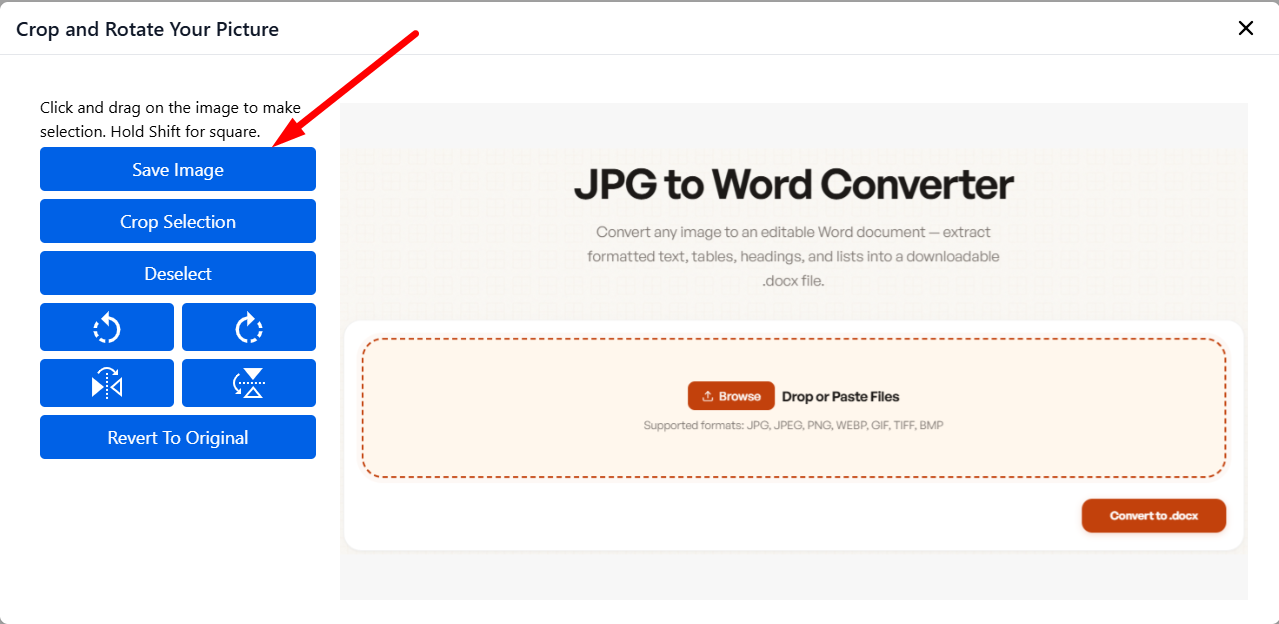
After you are done with edits, click the convert button.
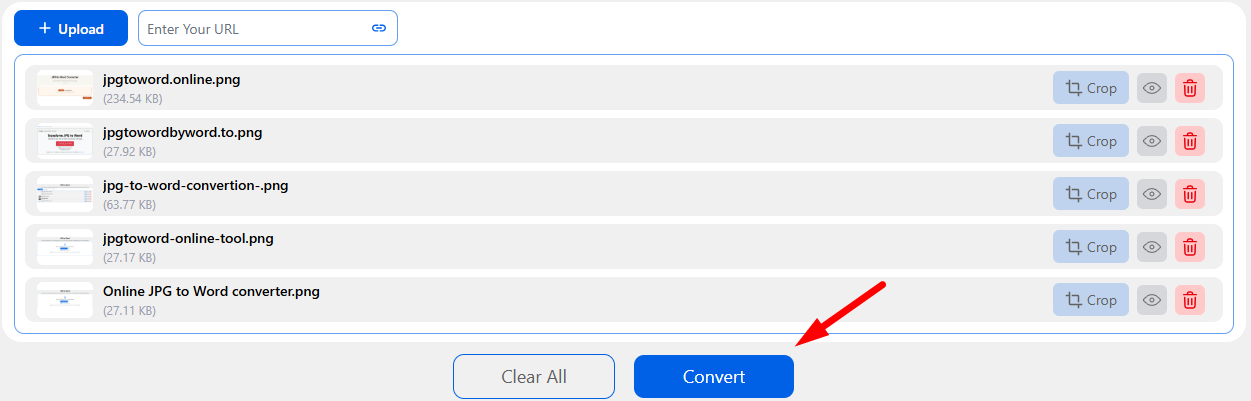
Step 3. Download Word DOC
Clicking the convert button will initiate the conversion instantly and show results once it is complete. You can download the converted image files as a Word doc with a single click, either individually or collectively.
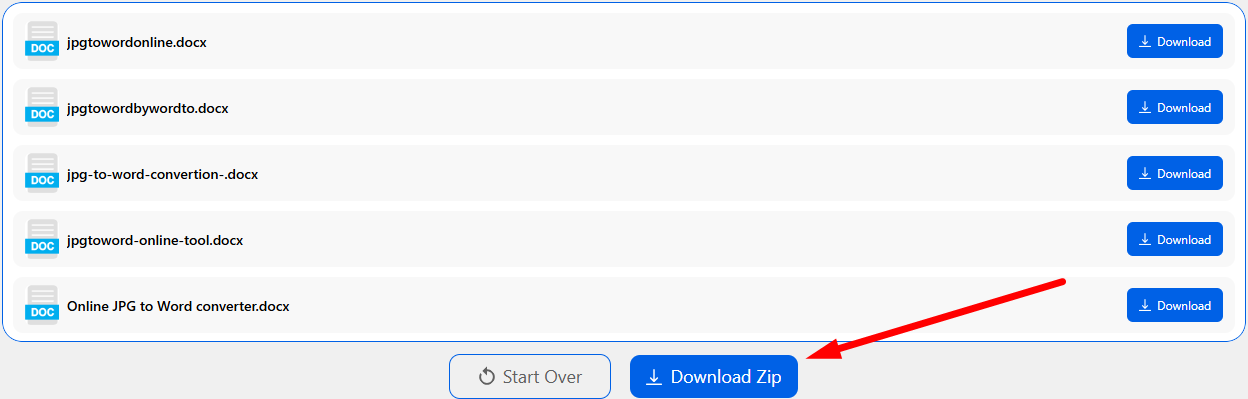
To download individual doc files, click the Download button next to each. For a collective download, click the Download Zip button at the bottom. You will get all the documents in a single zip folder.
2. How to Convert JPG to Word with Google Drive
Yes, you can use Google Drive to convert JPG files into documents.
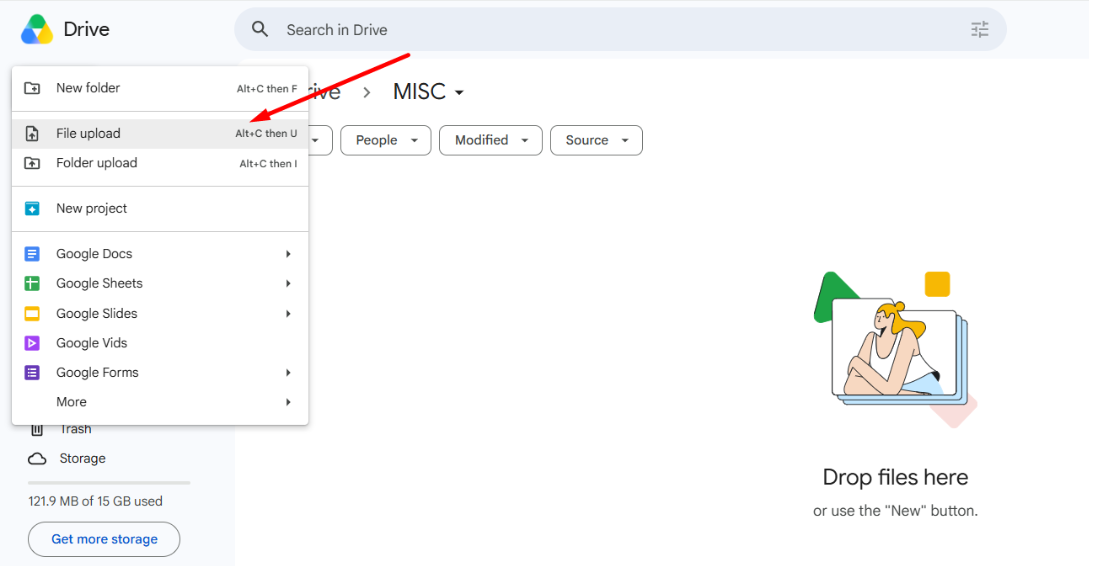
Step 1. Upload JPG Files
Open Google Drive (make sure you are logged in). Upload JPG images to the drive.
Step 2. Open with Google Docs
After uploading, right-click on the image that you want to convert. Hover over ‘Open with’ and click ‘Google Docs’.
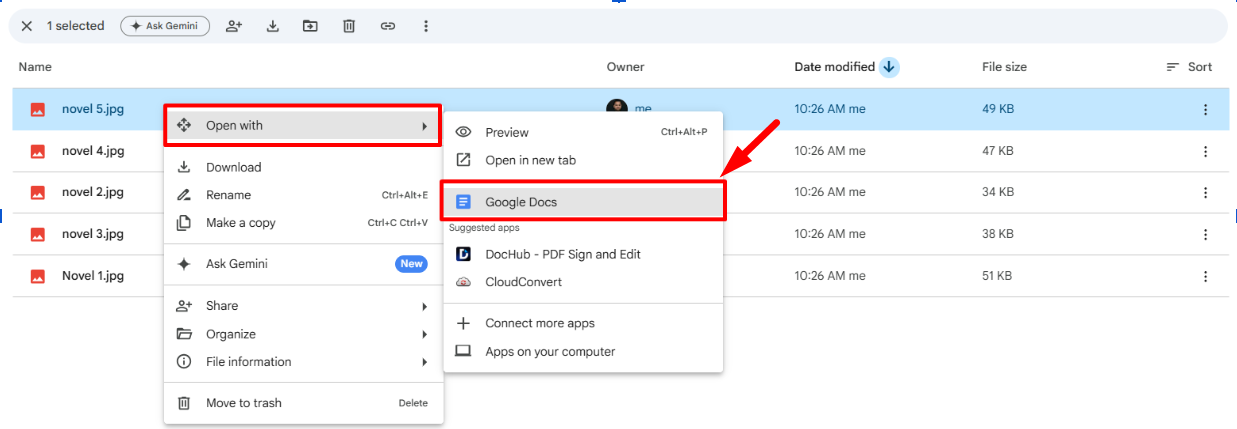
Using OCR, Google Docs will open a document in a new tab with your JPG image and text.
Step 3. Convert & Download as Word
Open the Google Doc file and click ‘File’ > ‘Download’. Next, click ‘Microsoft Word’; your JPG file will be downloaded as a DOCX.
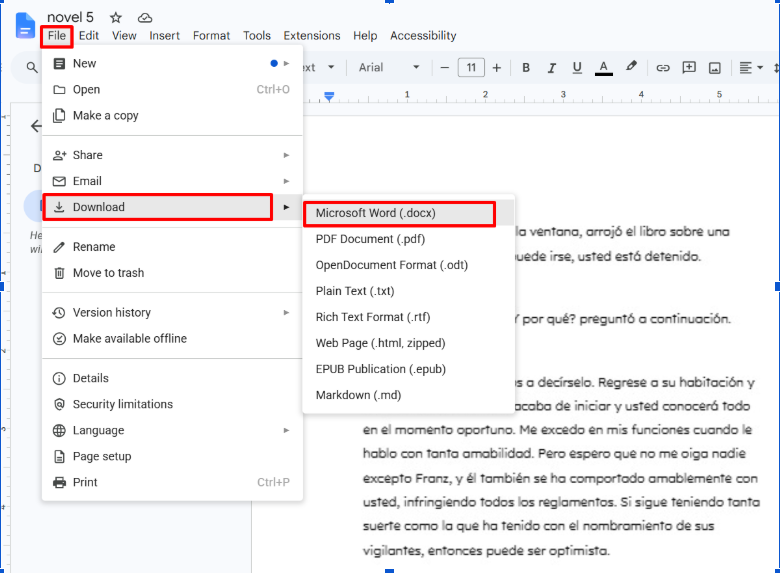
With this process, you can convert one JPG file into a document at a time.
3. How to Convert JPG into Word Using MS Word?
If you have Microsoft Word installed on your device, you can use it to convert JPG image files into an editable document. But in this method, a little extra is required as you have to perform two different conversions.
Step 1. Convert JPG to PDF
Begin by converting JPG to PDF. For this, open a blank Word Document, click Insert, then Pictures, and import your JPG file (s) from your device.
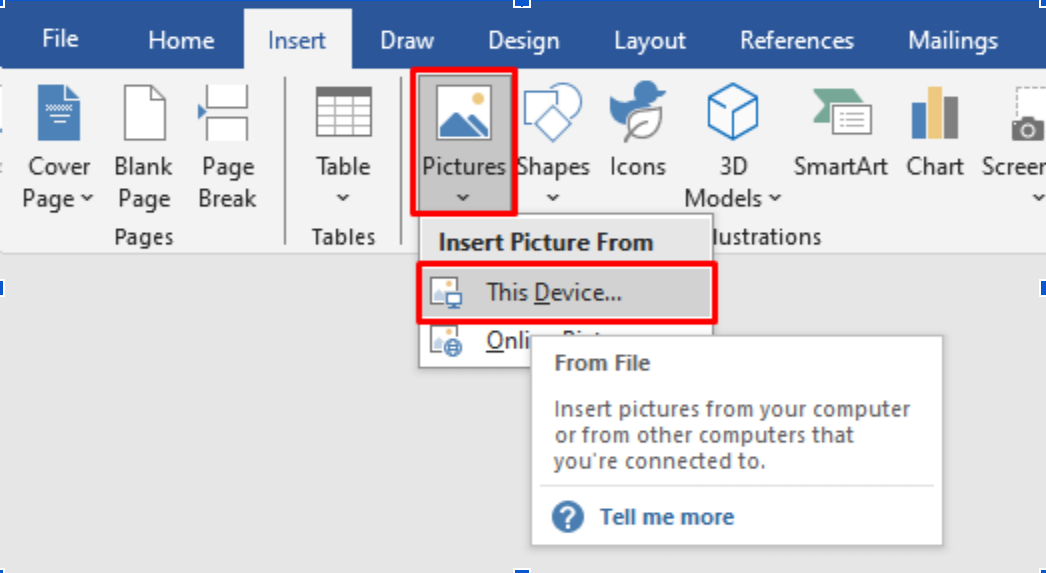
After bringing in a JPG inside the document, click File, then Save As, select the location where you want to save, and then Save as PDF.
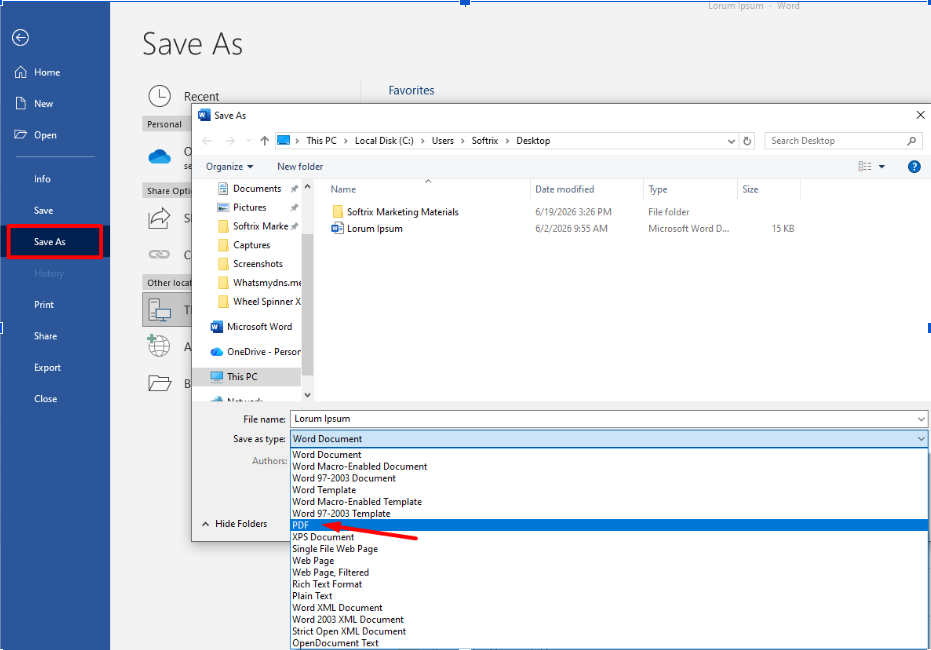
Step 2. Open PDF Image in MS Word
Now, right-click the saved PDF file containing your JPG image(s) and open it with MS Word. Upon opening, you will see a message from Word asking you to convert the PDF into editable text.

Click ‘OK’. Your JPG will get converted into a Word document. Later, save and use it as needed.
4. How to Convert JPG to Word Using AI
Many AI tools and chatbots can perform document and image conversion.
- Open any reliable AI tool like ChatGPT, Claude, or Gemini.
- Attach your JPG file.
- Run the below prompt:
- “Convert the attached JPG file into a Word document and give me the download link”.
- Click the download link or button provided in the results.
These are the steps for using AI to convert JPGs into Microsoft Word.
Why is JPG to Word the Best Way?
As mentioned earlier, JPG to Word is the best and fastest method for converting JPG files into Word. And we stand by that statement.
Here’s why:
- Just upload and convert. No extra steps.
- No technical setup is required.
- No need to sign up or register.
- Fully free to use.
- Unlimited use: convert as many JPGs as you want to Word.
- You get the text inside the JPG in editable form.
Takeaways
JPG to Word conversion is now very easy, all thanks to online tools. If you need to perform the conversion, just open JPG to Word, upload your JPG images, and download them as a Word document.
Yet, you can use other methods as well, but why take extra steps or headaches when a task can be achieved easily?